The 3-2-1 Backup Rule, Explained Simply
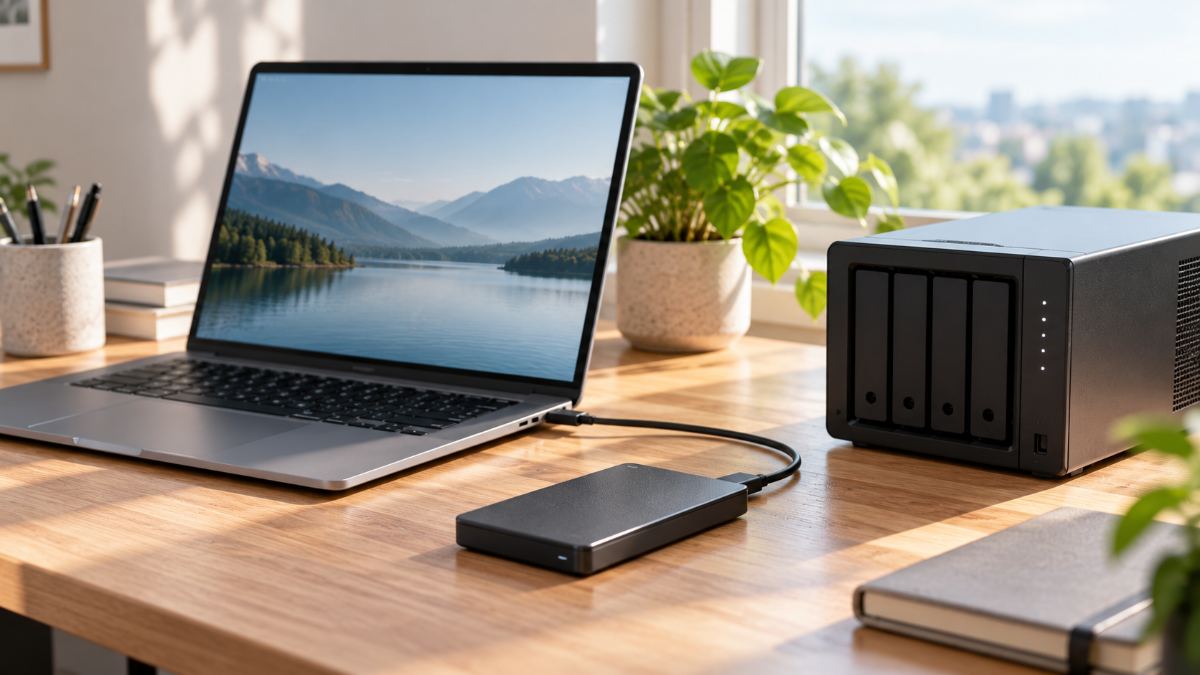
Hard drives fail, laptops get stolen and ransomware happens. The 3-2-1 rule is the simplest way to make sure none of those turns into lost work.
How this guide was made. Research-based: this guide draws on official documentation, pricing pages and published independent guidance. I have not lab-tested the products in this category, and nothing here is presented as hands-on testing. Our research process.
The rule in one sentence
Keep 3 copies of your important data, on 2 different types of storage, with 1 copy stored somewhere else entirely.
3 copies
Your working files count as one copy. You need two more. Any single copy can fail; three independent copies failing at the same time is very unlikely.
2 types of storage
If both backups sit on identical drives bought on the same day, they may wear out together. Mixing media – for example your laptop's internal drive plus an external drive or a network storage box – reduces that shared risk.
1 copy off-site
A fire, flood or burglary can take out everything in one room. An off-site copy, usually a cloud backup service, survives local disasters.
A practical setup for remote workers
| Copy | Where | How often |
|---|---|---|
| 1. Working files | Your laptop | Live |
| 2. Local backup | External drive or NAS | Daily, automatic |
| 3. Off-site backup | Cloud backup service | Continuous, automatic |
Sync is not backup
Cloud storage that syncs a folder across devices is convenient, but if you delete or corrupt a file, the sync happily copies that mistake everywhere. A true backup keeps older versions so you can go back in time. Check that your cloud tool offers version history, or use a dedicated backup service alongside it.
What to look for in a cloud backup service
- Automatic, continuous backup that runs without you remembering.
- Version history of at least 30 days, ideally longer.
- Encryption in transit and at rest, with an optional private key.
- Easy restore of a single file or a whole drive.
- Clear pricing per computer or per amount of storage.
Test your restore
A backup you've never restored from is a hope, not a plan. Once a quarter, pick a random file and restore it. It takes two minutes and tells you the system actually works.
Start today with the cheapest step: turn on your computer's built-in backup to an external drive. Then add an off-site copy.